
PixelLab - Text on pictures
App HoldingsPhotography
4.05.51K Reviews
- Version
- 2.1.9
- Installs
- 100.00M
- Age Rating
- Everyone
Screenshots
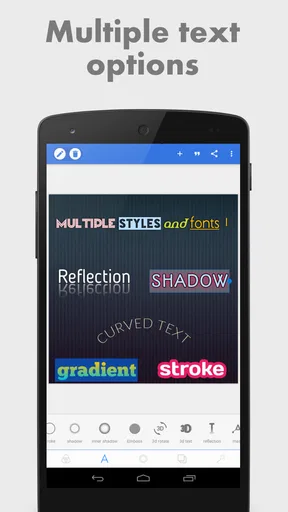
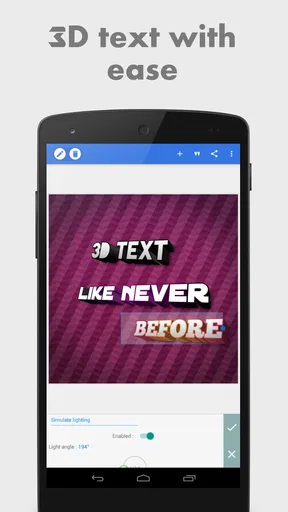
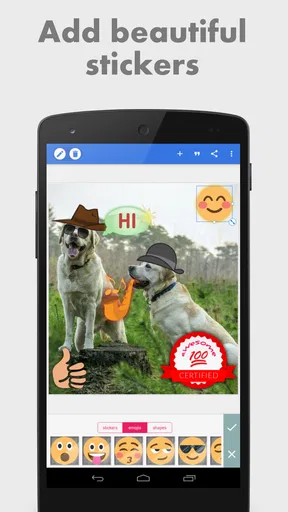
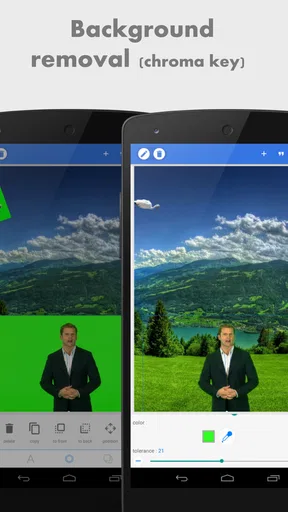
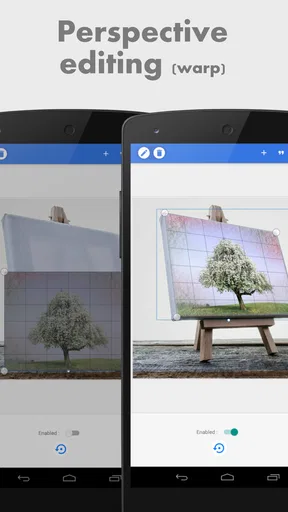
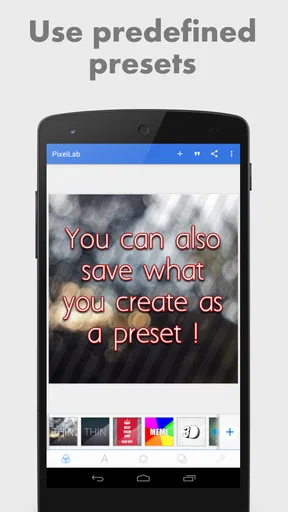
Our Review of PixelLab - Text on pictures
 Analysis by Appyee
When I’m sharing a device at home, a photo edit often starts as a small favor: someone wants a name added to a picture, a quick birthday graphic, or a caption that is easier to notice than a message in a chat. PixelLab - Text on pictures suits that kind of casual task because it focuses on building an image around text and simple visual additions. I see it as a handy creative tool for moments when opening a full design suite would feel like too much work.
A useful role on a shared device
In a household, the same phone or tablet may be used by people with very different ideas about what makes a good picture. One person may want a clean label for a family album, while another wants a bold meme or a playful sticker. PixelLab’s text, drawing, shape, and sticker tools make those quick projects possible without asking everyone to learn a separate, specialized editor.
A realistic example is preparing a small notice for a shared space: I could start with a photo, add a short heading, and use a contrasting color or outline so it is readable at a glance. For a personal touch, I might curve the heading or add a simple drawing. The useful point is to keep the message short and check it at the size people will actually see it; an effect that looks fun while zoomed in can become hard to read on a small screen.
Simple boundaries make sharing easier
Because this is an image editor rather than a household coordination service, I would treat the device and the finished files as separate parts of the routine. Before handing the phone to someone else, I’d save or export a finished image and make clear which photo they should edit. That avoids the familiar mix-up where a shared device contains several similar drafts and nobody knows which one is ready to send.
I would also be cautious with personal photos when several people use the same device. Choose the image deliberately, check the result before sharing it, and avoid assuming that an edit is private just because it was made inside an editor. The app is useful for making the graphic; deciding who can see the source photo or the final image is still part of how the household handles its device and sharing habits.
Coordinating small creative jobs
PixelLab can help with a quick visual, but it does not replace a conversation about who is doing what. If two people are making graphics for the same event, agreeing on the wording, colors, and final destination first can prevent duplicate versions. I’d use one person to handle the final save and share, especially when the image is meant for a group chat or a public social post.
For repeat tasks, a practical approach is to keep the design modest and reuse a consistent style: the same heading color, a similar text placement, and only a few decorative elements. That makes a set of notices or invitations look related without turning every small edit into a long design session. It also gives younger or less experienced users a clear starting point while leaving room for their own choices.
Age, trust, and sensible expectations
The app is rated for Everyone, and its basic purpose is approachable: add text or decorations to pictures. That rating does not decide how a family should manage a shared device, though. I’d still guide children on choosing appropriate photos, checking words and stickers before sharing, and asking before posting an image that includes someone else. Those are sensible habits for any photo-editing app.
PixelLab is free to download, with optional in-app purchases listed at $2.99 per item. I’d let anyone sharing the device know that purchases are possible and agree on who may make them, rather than assuming that a free app can never lead to a charge. The app comes from App Holdings, has a 4.0 average from around 558,000 ratings, and has passed 100 million installs, which suggests it has found a broad audience for this focused style of editing.
Ever found yourself scrolling through your photo gallery and thinking, “Wow, this picture would look even cooler with some text on it”? Well, that's where PixelLab - Text on pictures comes into play. This nifty app is all about jazzing up your photos with text, and let me tell you, it does a pretty impressive job.
Getting Started with PixelLab
The first thing you'll notice when you fire up PixelLab is its clean and intuitive interface. Whether you're a seasoned designer or a newbie just looking to add a little flair to your pics, you'll feel right at home here. The app opens up directly to the editing screen, so you can jump right in without any fuss.
One thing I really appreciate is how PixelLab doesn’t bombard you with ads right off the bat. You can actually start creating without those annoying interruptions. It's like a breath of fresh air, especially if you’ve ever used those free apps that seem to love throwing ads at you every two seconds.
Features Galore
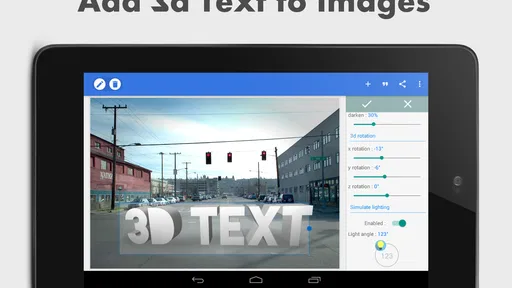
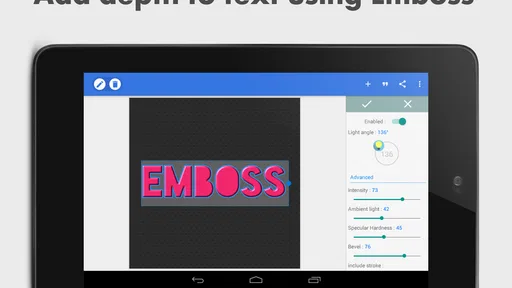
Now, let's talk features. PixelLab is packed with everything you need to transform a basic photo into something special. You can add text, of course, but the options don’t stop there. There are fonts galore, and you can customize everything from the color to the shadow, stroke, and even 3D text effects. Feeling creative? You can bend and curve your text to fit the vibe you’re going for.
Beyond text, PixelLab lets you doodle directly onto your pictures, add shapes, and even stickers. If you’re a fan of quotes, you’ll love the vast library of pre-made quotes you can slap onto your images with just a tap. And for those who love a bit of structure, you can create memes and motivational posters with a super simple template feature. It's like having a mini design studio in your pocket.
Easy to Use
What really makes PixelLab stand out, in my opinion, is how user-friendly it is. You don’t need a degree in graphic design to make something that looks professional. The app guides you through the process and even offers tips and tricks as you go along. It’s straightforward, and you can learn as you create.
Editing is a breeze, thanks to the responsive controls. You can pinch, drag, and rotate text and other elements with ease. Plus, the undo and redo functions are lifesavers for those "oops" moments.
Getting a cleaner result from the tools
The range of text effects is a strength, but restraint usually produces the more readable result. For a small announcement, I’d begin with a plain font, make the wording easy to scan, and then use one treatment—perhaps a shadow or stroke—to separate it from a busy photo. Combining a thick outline, a shadow, a bright color, and a 3D effect can make a short caption feel crowded rather than polished.
Curved text is most useful when the picture has a clear open area or the words are brief. Long sentences wrapped around an image can be harder to read, so I’d save that effect for a title, a name, or a few words. Similarly, stickers and doodles work best when they support the subject instead of competing with it. These small choices matter more than adding every available decoration.
One practical workflow is to place the text before choosing extra flourishes. I’d position the words where the photo is least busy, adjust the color for contrast, and only then decide whether a shape or sticker adds anything. If the image already has strong detail, a simple text block can be the better design. Undo and redo make experimentation low-risk, but they do not replace checking the final image at its normal viewing size.
Where it fits among photo editors
Compared with a general photo editor, PixelLab’s appeal is its emphasis on typography and quick graphic composition rather than a long sequence of image corrections. If my main goal is to put a title, quote, label, or meme caption onto a picture, I’d choose a tool built around text rather than hunt through a broader editor for the right controls. Its drawing and sticker options also let me finish a lightweight design in the same place.
The trade-off is that a dedicated text-focused editor is not automatically the best choice for every photo job. If I want to correct lighting, carefully retouch a portrait, or make a complex layout with precise brand rules, I’d reach for an editor designed around those needs. PixelLab is strongest when the image is already usable and the words or decorative elements are the main reason I’m editing it.
That distinction is useful when deciding whether to keep it on a shared device. For a family member who regularly makes invitations, labels, simple posters, or social graphics, the focused tools can be easier to approach than a more elaborate design application. Someone who only wants a quick crop or color adjustment may find a basic gallery editor faster, while someone producing highly controlled professional artwork may want more specialized software.
Saving with a purpose
Once you’ve crafted your masterpiece, saving and sharing it is simple. PixelLab allows you to save your images in various formats and resolutions, which is great if you’re planning to print or share them on different platforms. Social media sharing is integrated, so you can instantly upload your creations to Instagram, Facebook, or wherever your audience hangs out.
Before exporting, I’d think about where the picture will be used. A graphic intended for a phone screen does not need the same treatment as one someone plans to print, and checking the available resolution choices can help avoid a result that looks soft in its destination. I’d also review the edges and text placement after saving, since a design that looks balanced in the editing view may feel different when viewed as a finished image.
Oh, and if you’re a fan of cloud storage, you can back up your projects to Google Drive, so you never lose your hard work. This feature is a real game-changer for those of us who are a bit paranoid about losing digital creations.
For shared projects, I’d agree on a simple handoff: one person makes the graphic, another checks spelling and readability, and the person responsible for the destination does the final share. That’s especially helpful for event notices, where a wrong date or an outdated draft can be more troublesome than an imperfect font choice. Saving a clear final version also makes it easier to distinguish the approved image from an experiment.
Who will enjoy it, and who may want another tool
I’d recommend PixelLab to people who often add words to photos and want room to adjust how those words look. It is particularly suitable for quick memes, quote images, simple announcements, and informal posters, where text styling is the central task and a bit of playful decoration is welcome. The free entry point makes it easy to try for occasional projects, while optional purchases are worth keeping in mind on a shared device.
I would skip it if my priority were extensive photo repair, complex page layout, or a tightly controlled professional workflow. It is also not the ideal choice when several people need a coordinated process for reviewing drafts; the app helps create an image, but the household still needs to decide who edits, who approves, and where the finished file goes. For occasional, self-contained graphics, that simplicity is a benefit. For more demanding work, it can become a limit.
Version and everyday expectations
PixelLab is a photography app developed by App Holdings. It was released on April 10, 2015, and the current version is 2.1.9, with Android 6.0 as the minimum operating system. Those details make it sensible to check device compatibility before planning to use it on an older phone or tablet. Its Everyone content rating is approachable for a broad household audience, but it does not remove the need for common-sense supervision around photos, sharing, and purchases.
The average rating is 4.0, with around 5,500 written reviews. I’d treat those figures as a sign that many people use it, not as a guarantee that every workflow will suit me. The more useful question is whether my regular edits are text-led. If they are, the app’s combination of typography, simple drawing, stickers, and image export makes a convincing case; if they are not, another editor may feel more direct.
Wrapping It Up
All in all, PixelLab - Text on pictures is a must-have app if you love tinkering with your photos. Whether you’re making a meme, designing a poster, or just adding a bit of text for fun, this app has got you covered. It’s easy to use, packed with features, and won’t drive you crazy with ads. Give it a spin, and let your creativity run wild. You might just surprise yourself with what you can create!
A household verdict
For a shared phone, I’d keep PixelLab in the “useful for a specific job” category rather than treating it as the place for every kind of image editing. It is a friendly option when someone needs to turn a photo into a readable, personal graphic without a steep learning curve. A quick check of the image, wording, export choice, and sharing destination is still worthwhile, especially when several people use the same device.
My recommendation is strongest for households that enjoy making casual visual messages and can agree on a simple save-and-share routine. It is less compelling for people who need advanced retouching or formal team review. If adding expressive text is the main task, I think its focused approach is genuinely convenient; if the text is only a minor part of a bigger editing job, I’d choose a broader tool instead.
Verdict
Strengths of PixelLab - Text on pictures
- Extensive font library for creative text.
- User-friendly interface for easy navigation.
- Supports 3D and shadow effects.
- Wide range of stickers and shapes.
- Offline use without internet connection.
Limitations of PixelLab - Text on pictures
- Contains ads that can interrupt usage.
- Limited export formats available.
- Some features are behind a paywall.
- Can be resource-intensive on older devices.
- Occasional app crashes reported.
Similar Picks in This Category
View All
Google Photos
Google LLC4.4

Gallery
Google LLC4.2

Picsart AI Photo Editor, Video
PicsArt, Inc.3.9

B612 AI Photo&Video Editor
SNOW Corporation4.1

BeautyPlus-Selfie Photo Editor
PIXOCIAL TECHNOLOGY (SINGAPORE) PTE. LTD.4.5

Remini - AI Photo Enhancer
Bending Spoons4.1
Frequently Asked Questions
What features does PixelLab offer for text editing on pictures?
PixelLab provides a wide range of text editing features, including 3D text, text effects, and text color options. Users can choose from over 100 fonts, customize shadows, and apply stroke effects. Additionally, it offers options to add stickers, shapes, and even draw directly onto images, making it a versatile tool for creative expression.
Is PixelLab user-friendly for beginners?
Yes, PixelLab is designed with an intuitive interface that is user-friendly for beginners. The app provides easy-to-navigate menus and straightforward tools that allow users to quickly add text and effects to their images without needing prior experience in graphic design. Tutorials and tips are also available to assist new users.
Does PixelLab support exporting images in high resolution?
PixelLab allows users to export their edited images in high resolution, making it suitable for professional use. The app provides options to save images in various formats and resolutions, ensuring that the final product maintains its quality, whether for social media sharing or printing purposes.
Are there any in-app purchases or ads in PixelLab?
PixelLab is free to download and use, but it does contain ads. For users looking to enhance their experience, the app offers in-app purchases to remove ads and unlock additional features. This can include more fonts, effects, and editing tools, providing a more comprehensive editing suite.
Can PixelLab be used offline?
Yes, PixelLab can be used offline, allowing users to edit images without an internet connection. This makes it convenient for use in various settings, whether you're traveling or in an area with limited connectivity. However, some features, like downloading additional content or updates, will require an internet connection.
